How to fill Meesho catalog fields faster without making errors

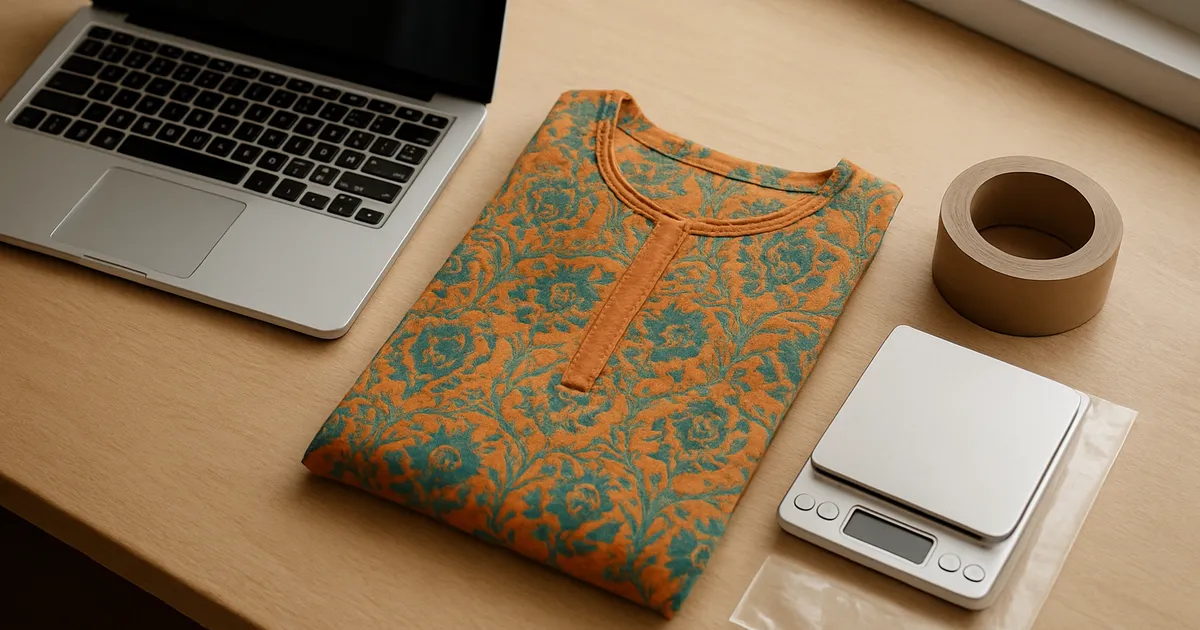
Illustration generated with AI
If you sell fifty designs of the same product type, you type the same brand, GST rate, HSN code and return details fifty times. By design number thirty your fingers are on autopilot and the mistakes start. This post shows a method for cutting that work, and where a tool helps.

Why do errors increase as you list more?
It is not carelessness. It is repetition. Humans get worse at checking things they have seen many times. A wrong HSN code on one listing out of forty will not announce itself, and you may find it only when Meesho flags it or when a tax question comes up later.
So the aim is not to type faster. It is to type fewer fields.
How do you sort fields into three groups?
Open one finished listing in your category and read down the fields. Put each one in a group.
Never changes within a category. Examples: brand, GST percentage, HSN code, country of origin, manufacturer details, return policy. These are the fields to save once.
Sometimes changes. Fabric, pattern, occasion, sleeve type. Several designs share them, but not all.
Changes every time. Product name, colour, price, SKU ID, photos, and stock count.
You only type the third group by hand, and you check the second group per product. The first group should never be retyped.
A worked example with a kurti category
Suppose you sell cotton kurtis, with 40 designs planned.
- Group one: brand, GST rate, HSN code, country of origin, manufacturer name, return details.
- Group two: fabric (mostly cotton, a few rayon), sleeve type, neck type.
- Group three: name, colour, SKU, price, photos, stock.
Before this method, each listing might take you 8 to 10 minutes. We will not claim a fixed saving, since it depends on you and on the Meesho panel on that day, but removing group one from each listing is the largest single time saver.
What does a saved profile look like in practice?
A profile is just the answers to group one and the stable part of group two, stored under a name like "Cotton Kurti". When you open Add Product for a new design, you apply the profile and the dropdowns and text boxes fill in. You then change the name, colour, SKU and price.
You can do this with a text file and copy-paste. It works, but dropdowns are the pain point, because pasting text into a dropdown does nothing. That is why we built the Meesho Listing Autofill extension. You open Add Product on the supplier panel, scan the page for fields, fill in the values once, name the profile, and save. On the next listing you press Autofill, or Ctrl+Shift+F, and the form fills.
A few things it does and does not do, so there are no surprises:
- It fills fields. You still upload photos and press submit yourself.
- It works on desktop Chrome, Edge and Brave.
- It has a 5 day free trial for new accounts, and after that a paid plan activated through WhatsApp.
- It can clone a profile for a variant, say a different fabric, and bump the SKU number after each fill.
What mistakes can still happen with autofill?
Automation copies your mistakes faster. If the profile has the wrong HSN, every listing has the wrong HSN. Three habits help.
Check the profile against a real source once. Get the HSN and GST confirmed by your accountant, then save the profile.
Review dropdowns after filling. Meesho changes its options now and then, so a saved value may no longer match. Look at them before you submit.
Keep one profile per category. Do not stretch a kurti profile over a saree listing. Clone and adjust instead.
How do you handle sizes and colours?
Variants are group three material, so do not put them in the profile. A simple SKU pattern avoids confusion: design number, colour code, size, for example KUR-014-BLK-L. When you read an order, you know what to pick from the shelf without opening the listing.
If you use the tool's auto-increment option for SKU IDs, check the first two or three listings to make sure the numbers go up the way you expect.
A short checklist before you save any profile
Before you save a profile for a category, go through it once, slowly. Check the HSN code against what your accountant gave you. Check the GST percentage. Read the return details aloud. Confirm the country of origin and the manufacturer information match your documents. Look at each dropdown and make sure the value still exists in the current form. Then save, and run one test listing without submitting it, comparing every field to the profile. This takes ten minutes and prevents a mistake from being copied across forty listings. Repeat the check whenever Meesho changes the form or your product details change.
How do you keep profiles organised?
Name profiles by category and key attributes, like "Cotton Kurti - Straight" or "Saree - Georgette". Keep a short note on when each was last checked. When Meesho changes a field, update the profile and its note straight away. Delete profiles you no longer use so you do not pick the wrong one on a busy day. If more than one person lists products, agree who may change a profile, because one careless edit affects every listing that follows.
What to do next
Take your most common category, list its fields in three groups on paper, and decide which ones you will never retype again. Even with no tool, that sheet will cut mistakes. If you are listing many products, try the extension for the repeating group and compare your time over ten listings.
FAQs
Does the extension send my data to Meesho? It reads the Add Product form on the supplier panel to fill the fields, and the profile data is stored locally or in your Infigrow account if you sign in. Check the privacy policy for the full detail.
Can I use it for Flipkart too? Recent versions add Flipkart and Shopsy support. Check the extension page for what is currently supported.
What if a field is not detected? Fill it by hand and save the profile again. Panels change, and a field can appear in a new place. If a field keeps failing, send us a note through the contact page.
Image credits: Illustration generated with AI for Infigrow AI, Photo: Laptop keyboard abstraction by Martin Vorel (CC BY-SA 4.0), via Wikimedia Commons, Photo: Embroidery on a saree 01 by Kritzolina (CC BY-SA 4.0), via Wikimedia Commons