Why your Instagram link opens in a browser, and how to open YouTube or Facebook in the app instead
Illustration generated with AI
You post a reel, put your YouTube link in the bio, and people tap it. Views on the video go up a little, but subscribers do not. The reason is often the way the link opens, and it is easy to miss because it happens on your viewer's phone and not yours.
What actually happens when someone taps your link?
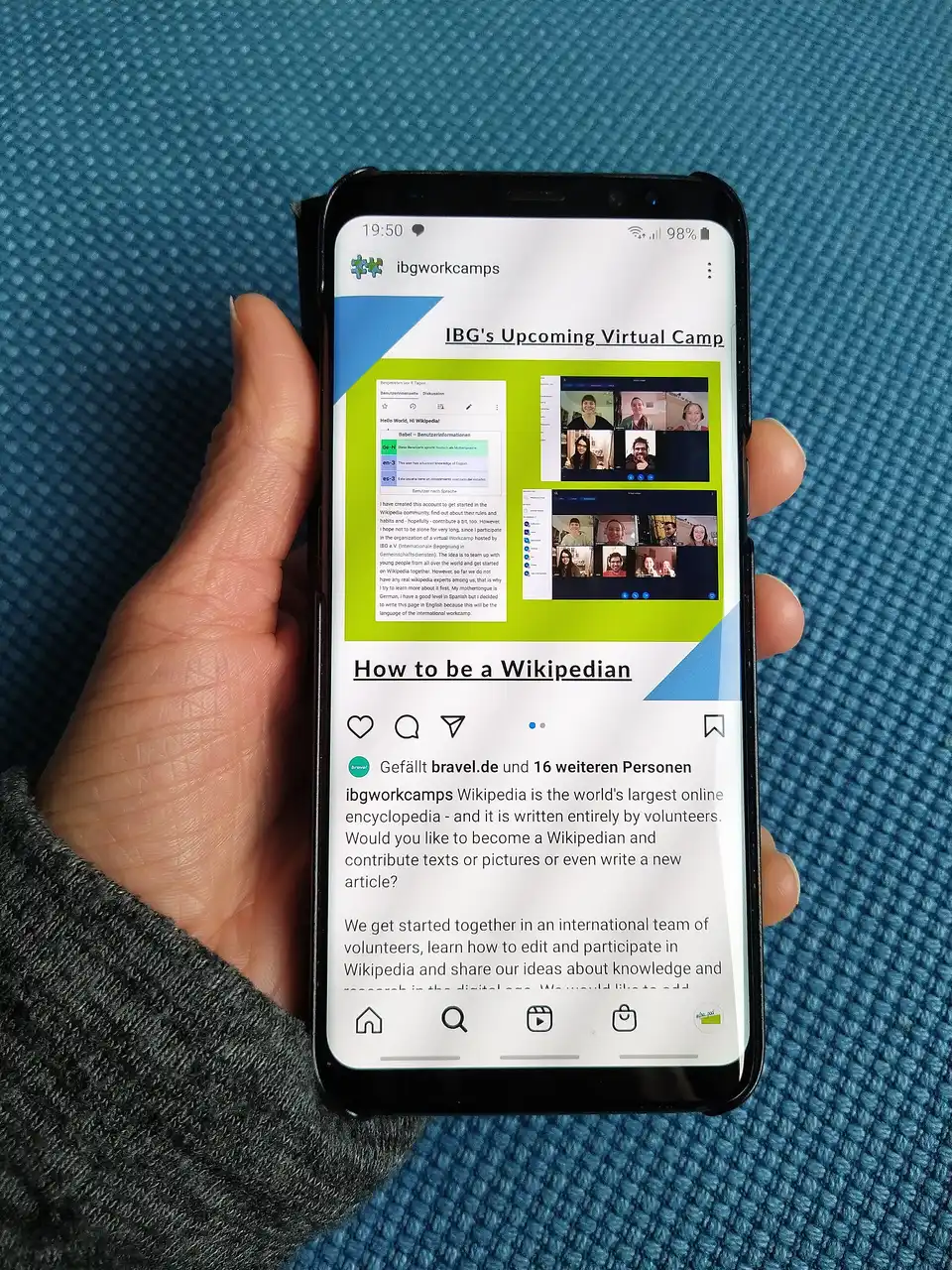
Apps like Instagram often open links in a built-in browser inside the app. It looks like a normal web page, but it is not the YouTube or Facebook app. In that mini browser, the viewer may not be logged in to YouTube, so the Subscribe button asks them to sign in or does nothing useful. The same happens on Facebook, where the Follow or Like buttons need a login.
Most casual viewers will not log in just to subscribe. They watch, or they leave. That is a lost follower.
How do you check this on your own phone?
Open your Instagram bio on a phone, tap your own link and look at what opens. If it is a page inside Instagram with a small bar at the top or bottom and no YouTube app interface, that is the in-app browser. Try tapping Subscribe. If it asks for sign-in even though you are logged in on the YouTube app, you have found the problem.
Ask a friend with a different phone to try as well, because behaviour can differ between Android and iPhone.
What does Smart Social Links do about it?
You paste your normal YouTube or Facebook link into the tool, choose the platform and get a short link. When someone taps that short link from Instagram, it tries to open the video or page directly in the YouTube or Facebook app, where the viewer is already logged in and the buttons work. The tool also counts clicks, so you can see how many people tapped and what devices they used.
You can pick a custom name for the short link, or let the tool generate one. The result looks like a tidy short address that you put in your bio, stories or messages.
A worked example: one YouTube video
Suppose you upload a tutorial and want people from Instagram to subscribe.
- Copy the video link from YouTube.
- Open Smart Social Links, paste the link and select YouTube.
- Choose a short name, such as "mytutorial".
- Copy the short link and paste it into your Instagram bio, or into a story link if your account supports it.
- Check the click count after a few days.
If you then compare subscriber growth in the days around the change with the days before, you get an idea of whether it helped. Be careful about drawing strong conclusions from a short window, since views and subscribers depend on many things.
What should you track?
The tool shows clicks, devices and sources. A few simple habits:
- Make a separate smart link for each place you share. One for the bio, another for a story, a third for a WhatsApp broadcast. Then you can compare.
- Check which links get clicks and which are ignored.
- Note the date when you changed anything, such as the reel's caption or the video thumbnail.
What are the limits?
Be realistic. The tool cannot force the app to open on every phone, since that depends on the phone, the operating system and the app version. If the app is not installed, the link opens in the browser. Social apps also change how they treat links, so something that works today may behave differently after an update. Test on a couple of devices before you rely on it.
It also does not make people subscribe. It removes one point of friction. Content still decides whether someone wants to follow you.
Does this apply to other links?
The problem is the same for any link where login matters. For sellers, a Facebook page link in a bio is a good example, and so is a YouTube channel link. For a shop website, the in-app browser is usually fine, because a visitor does not need to log in to read a page.
How should you organise your links?
If you share your content in several places, separate links give you clean data. Make one for your Instagram bio, one for stories, one for each campaign or video, and one for messages. Give them readable names you can recognise later, like "bio-youtube" or "diwali-reel". Review the click counts every week and drop links nobody taps. Do not change a published link's destination without noting the date, since your numbers will mix. And test every new link on your own phone before sharing it, from the same app where your followers will tap it.
What else can you try on your bio page?
Link behaviour is only one part of converting visitors. Make the first line of your bio say what people get from following you. Pin a post that shows your best work. Keep your highlight names short and clear. Use a consistent profile picture across platforms so people recognise you when they land on your YouTube or Facebook page. Small details like these help a visitor decide in a few seconds, and they cost nothing to fix. Review your profile as if you were a stranger seeing it for the first time.
What to do next
Test your current bio link on your own phone. If it opens in the in-app browser and the buttons ask you to sign in, create a smart link and test again. Put it in your bio for two weeks and compare your numbers with the two weeks before.
FAQs
Is Smart Social Links free? Yes, it is free to use. Check the tool page for any changes.
Does it work for Shorts and reels? It is built for YouTube videos, Shorts and channels, and for Facebook pages, posts and reels. Test the exact link type you plan to use.
Can I see who clicked? You see click counts, devices and sources in the dashboard, not the identity of individual people.
Image credits: Illustration generated with AI for Infigrow AI, Photo: Hand holding Smartphone by Mictlancihuatl (CC BY-SA 4.0), via Wikimedia Commons